
Microsoft recently introduced (or quietly rolled out in a canary release) an exciting new feature: Copilot custom agents. While at first glance it may seem like a minor enhancement (after all, it doesn’t fundamentally change the underlying AI model), this addition is far more powerful than it appears.
No More Constant Re-Contextualizing
One of the biggest time-savers Copilot Agents offer is persistent context. Instead of re-explaining your setup every time, for example:
“I’m building an iOS 16 app in Swift 6 using MVVM, GRDB for the local database, and please don’t ever force unwrap an optional.”
You can preload this context into a custom Copilot Agent. For developers juggling multiple projects, this is a game-changer. Simply create a separate agent for each project, and you’re ready to go without repeating yourself.
Reference External Documentation for More Accurate Results
For those working on bleeding-edge technology, the real challenge is making sure Copilot gives accurate, relevant answers. With Copilot Agents, you can link to public documentation and force the model to prioritize those sources.
Limitations to note:
- Copilot will only follow links up to two levels deep (www.example.com/a/b works, but /a/b/c will not).
- You can attach a maximum of four links per agent.
Even with these restrictions, it’s incredibly powerful. For example, you can direct Copilot to prioritize the official Swift 6 documentation, ensuring you get the latest and most accurate language references.
Share Agents Across Your Team
Custom Copilot Agents aren’t just for solo use. You can:
- Export and share agent configurations as a ZIP file.
- Share directly within your Microsoft 365 organization using the familiar Office 365 sharing features.
This makes them ideal for development teams, support teams, or even entire departments. Imagine creating an agent tied to your company’s public-facing knowledge base. Your customer support team could get instant, accurate answers without hunting through internal docs.
How to Create a Microsoft Copilot Agent
If the feature is enabled for your account, you’ll see the option when you open Microsoft Copilot (for example, in Outlook on Office 365). From there, you can:
- Select an existing custom agent.
- Create one from scratch, either manually or with Copilot’s chat-based setup tool.
Once created, you can edit and refine the agent at any time. In our case, we built a “SwiftUI Expert” agent to keep our app development workflow lightning-fast. For instance, when I go to outlook.office365.com and go to Copilot, I see the following:
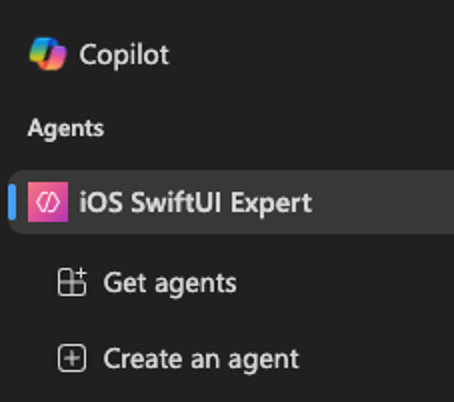

Once you finish creating the agent, you can go back and edit it. This is what my SwiftUI expert looks like:
Why Copilot Agents Matter for Businesses
From streamlining development to enabling support teams to respond faster, Copilot custom agents bridge the gap between AI capability and real-world workflows. They keep your context intact, ensure the right sources are used, and make knowledge instantly shareable.
And here’s the best part: creating a Copilot Agent is simple. There’s even an agent that will help you build more agents.
Want to explore how AI tools like Microsoft Copilot can transform your business operations?
At RBA, we help organizations design, implement, and optimize AI-powered workflows that deliver measurable ROI. Whether you’re looking to integrate Copilot into your development process or train custom agents for your teams, we can guide you from concept to execution.
Contact us today to start building smarter AI solutions.
About the Author

Robby Sarvis
Senior Software Engineer
Robby is a full-stack developer at RBA with a deep passion for crafting mobile applications and enhancing user experiences. With a robust skill set that encompasses both front-end and back-end development, Robby is dedicated to leveraging technology to create solutions that exceed client expectations.
Residing in a small town in Texas, Robby enjoys a balanced life that includes his wife, children, and their charming dogs.